
How to Record a HAR File
A HAR file is an archive of a browser session, including page load timings, requests sent to the server and the responses received. Support teams use it to diagnose and resolve slow website performance.
This article explains how to record a HAR file in different browsers.
Record the file while reproducing the slowdown, in the part of the website where it occurs.
Google Chrome, Opera and Yandex
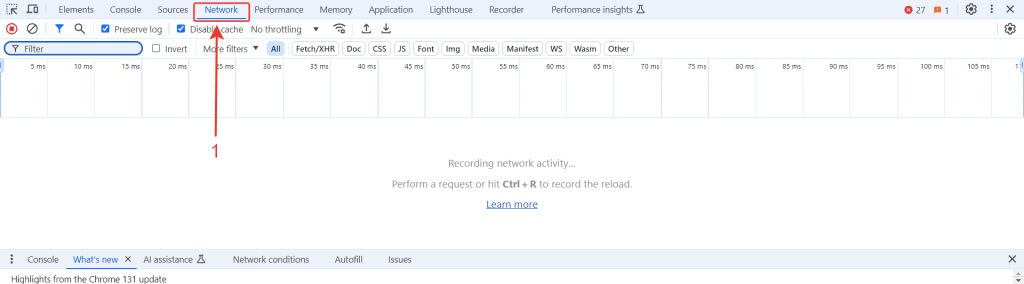
Open Developer Tools by pressing F12 or Fn+F12.- Select Network.
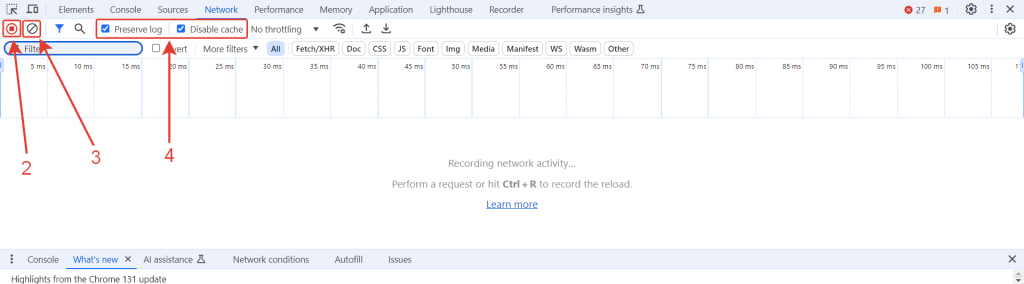
- Start logging by clicking the record button. A red button means recording is enabled.
- Clear the log by clicking button 3.
- Enable continuous logging and disable the cache by selecting Preserve log and Disable cache.
- Repeat the actions that make the website slow.
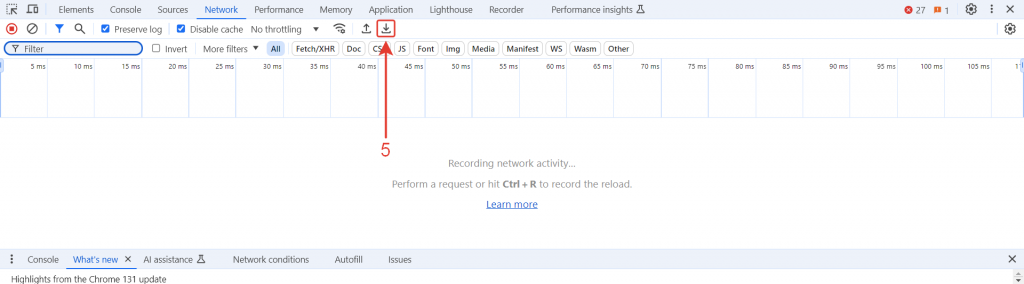
- Download the HAR file by clicking Export HAR.
Mozilla Firefox
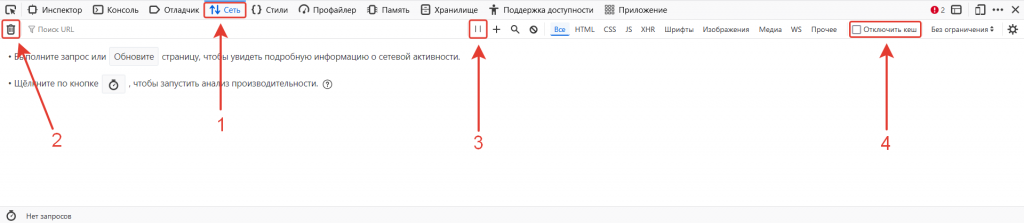
Open Developer Tools by pressing F12 or Fn+F12.- Select Network in the top toolbar.
- Clear the log by clicking the bin icon.
- Start logging by clicking the enable button. A pause icon means recording is enabled.
- Select Disable cache.
- Repeat the actions that make the website slow.
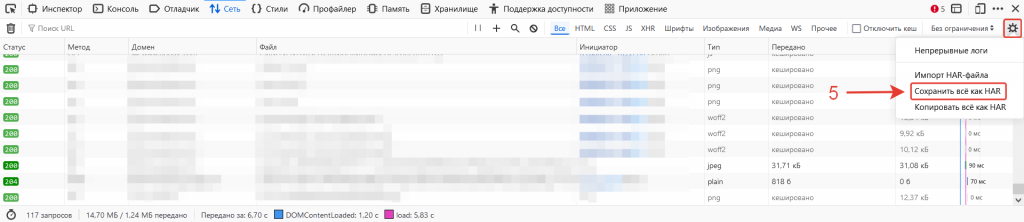
- Click Settings (⚙️) > Save All As HAR.
Microsoft Edge
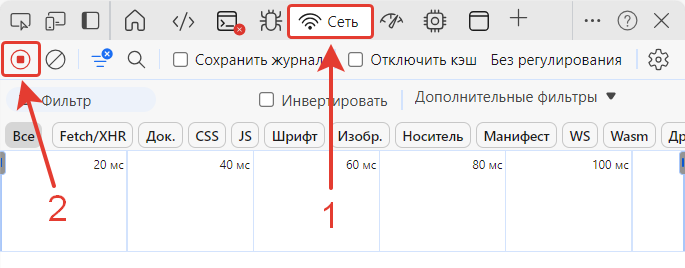
Open Developer Tools by pressing F12 or Fn+F12.- Click Network.
- Start recording the network log by clicking the record button. A red button means recording is enabled.
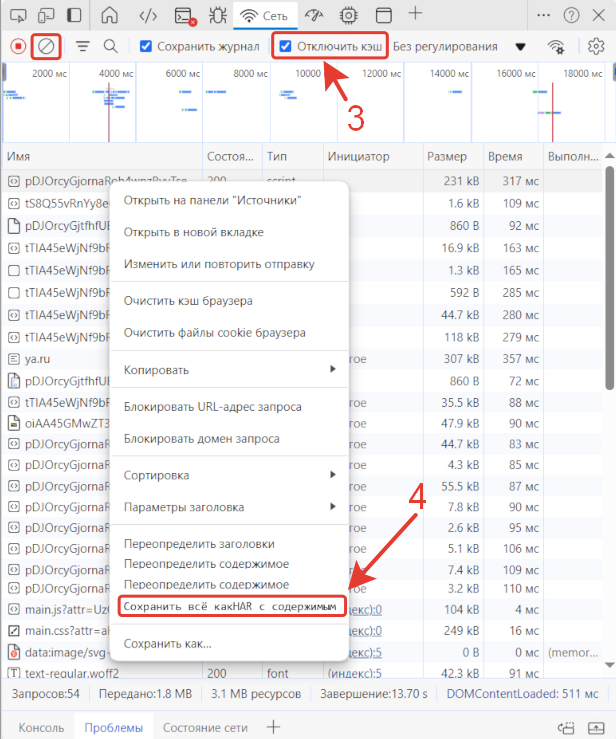
- Clear the network log using the clear button and disable the cache.
- Repeat the actions that make the website slow.
- Right-click any entry and select Save all as HAR with content.
Safari
- Click Develop > Show Web Inspector.
- Select Network.
- Disable the cache by selecting the corresponding checkbox.
- Clear the network log by clicking the bin icon.
- Click Clear > Preserve Log.
- Repeat the actions that make the website slow.
- Click Export.